Linux · medium risk
Install Docker on Debian and Ubuntu Server for Homelab Use
A practical step-by-step guide to installing Docker Engine, Docker Compose, and containerd on Debian and Ubuntu using the official Docker apt repository. Includes daemon configuration, rootless setup, and safe rollback.
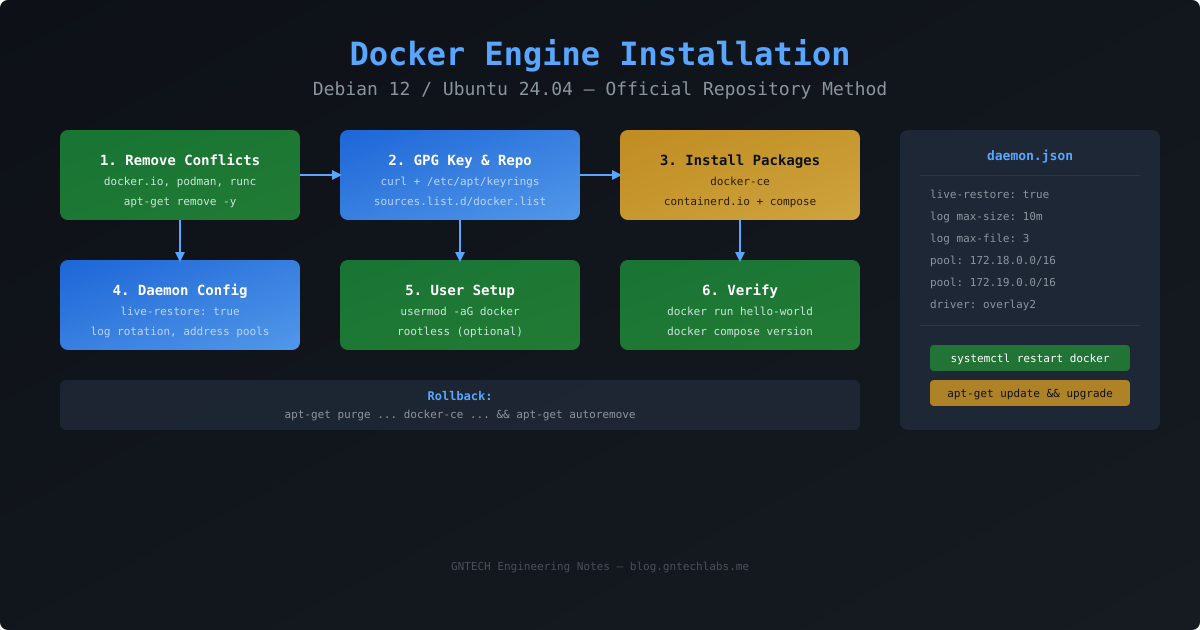
Overview
Docker Engine is the most widely used container runtime in homelab environments. Installing it correctly from the official Docker repository ensures access to the latest stable releases, security patches, and the Docker Compose plugin without the outdated version from distro repositories.
This guide covers a clean installation of Docker Engine, containerd, and Docker Compose on Debian 12 or Ubuntu 24.04, with post-install configuration tuned for single-host homelab use.
Why I Built/Tested This
I have installed Docker on several GNTECH lab servers over the years, and the most common mistakes come from three sources:
- Using the distro-packaged
docker.iowhich is often months behind upstream. - Piping scripts from the internet without verifying the GPG key.
- Running Docker as root and later fighting permission issues.
This guide follows the official Docker installation path for Debian and Ubuntu, with three homelab-specific additions: a sane daemon.json default, rootless Docker as a recommended post-step, and a clean uninstall path for rollback.
Hardware/Software Used
- A Debian 12 or Ubuntu 24.04 server (fresh or existing).
- sudo or root access.
- A non-root user account for day-to-day operations.
- Outbound HTTPS access to
download.docker.com. - At least 2 GB of RAM and 10 GB of free disk space for basic use.
Architecture
The installation follows a staged dependency chain:
Docker GPG key -> official apt repository -> docker-ce package -> containerd.io -> docker compose plugin -> daemon configuration -> user group -> rootless (optional)Each stage depends on the previous one. The daemon.json configuration controls log retention, default address pools for Docker bridge networks, and live-restore behaviour that keeps containers running during a Docker daemon restart.
Installation
1. Remove conflicting packages
Some cloud images or distro installs include docker.io, docker-doc, the standalone Docker Compose v1 package, podman-docker, or containerd from the distribution repositories. Remove them first to avoid conflicts:
for pkg in docker.io docker-doc podman-docker containerd runc; do
  sudo apt-get remove -y "$pkg" 2>/dev/null || true
done
This preserves existing configuration files in /etc/ in case you need to revert.
2. Set up the Docker apt repository
Install prerequisite packages if they are not already present:
sudo apt-get update
sudo apt-get install -y ca-certificates curl
Create the keyring directory and add the official Docker GPG key:
sudo install -m 0755 -d /etc/apt/keyrings
sudo curl -fsSL https://download.docker.com/linux/ubuntu/gpg -o /etc/apt/keyrings/docker.asc
sudo chmod a+r /etc/apt/keyrings/docker.asc
Add the repository to apt sources. For Debian, replace the UBUNTU_CODENAME section below as shown in the table:
echo \
  "deb [arch=$(dpkg --print-architecture) signed-by=/etc/apt/keyrings/docker.asc] https://download.docker.com/linux/ubuntu \
  $(. /etc/os-release && echo "$UBUNTU_CODENAME") stable" | \
sudo tee /etc/apt/sources.list.d/docker.list > /dev/null| Distro | Codename |
|---|---|
| Ubuntu 24.04 | noble |
| Ubuntu 22.04 | jammy |
| Debian 12 | bookworm, use VERSION_CODENAME |
| Debian 11 | bullseye |
For Debian, the environment variable VERSION_CODENAME is set instead of UBUNTU_CODENAME. Use this alternative one-liner:
echo \
  "deb [arch=$(dpkg --print-architecture) signed-by=/etc/apt/keyrings/docker.asc] https://download.docker.com/linux/debian \
  $(. /etc/os-release && echo "$VERSION_CODENAME") stable" | \
  sudo tee /etc/apt/sources.list.d/docker.list > /dev/null
3. Install Docker Engine
sudo apt-get update
sudo apt-get install -y docker-ce docker-ce-cli containerd.io docker-buildx-plugin docker-compose-plugin
Verify the installed versions:
docker --version
docker compose version
containerd --version
Expected output example:
Docker version 28.0.4, build ...
Docker Compose version v2.35.0
containerd containerd.io 2.0.5
Versions change as upstream releases updates. If a command returns not found, the corresponding plugin or binary is missing.
4. Start and enable Docker
sudo systemctl enable docker
sudo systemctl start docker
Verify the daemon is running:
sudo systemctl status docker --no-pager5. Configure Docker daemon for homelab use
Create or replace /etc/docker/daemon.json with sane defaults for a single-host homelab:
{
  "log-driver": "json-file",
  "log-opts": {
    "max-size": "10m",
    "max-file": "3"
  },
  "default-address-pools": [
    {
      "base": "172.18.0.0/16",
      "size": 24
    },
    {
      "base": "172.19.0.0/16",
      "size": 24
    }
  ],
  "live-restore": true,
  "storage-driver": "overlay2"
}
Restart Docker to apply the new configuration:
sudo systemctl restart dockerVerify the configuration loaded:
docker info | grep -i "pool\|live-restore\|Storage Driver"This configuration:
| Setting | Purpose |
|---|---|
| log-driver / log-opts | Limits per-container logs to 30 MB total, preventing disk fills from noisy containers. |
| default-address-pools | Prevents Docker bridge networks from conflicting with LAN or VPN subnets. |
| live-restore | Containers keep running during systemctl restart docker for maintenance or config changes. |
| storage-driver: overlay2 | The default and recommended driver for modern kernels. |
6. Add your user to the docker group
sudo usermod -aG docker $USERYou must log out and back in or run the following to apply the group membership in the current shell:
newgrp dockerVerify you can run Docker without sudo:
docker run hello-worldRootless Docker (optional but recommended)
Rootless Docker runs the daemon and containers under your user namespace, reducing the impact of a container escape. It is separate from the system Docker and can coexist.
Install required system packages:
sudo apt-get install -y dbus-user-session uidmapRun the rootless installation script:
dockerd-rootless-setuptool.sh installSet the environment variable in ~/.bashrc:
export PATH=/usr/bin:$PATH
export DOCKER_HOST=unix:///run/user/$UID/docker.sock
Rootless Docker is socket-activated and starts on demand. System Docker remains unaffected and can continue running its containers via the default socket.
Full Configuration
Summary of all files and their roles:
| File | Purpose |
|---|---|
/etc/apt/keyrings/docker.asc | Docker GPG key for signed apt repository access. |
/etc/apt/sources.list.d/docker.list | Apt source entry pointing to the official Docker repository. |
/etc/docker/daemon.json | Docker daemon configuration for log rotation, address pools, live-restore, and storage. |
/etc/systemd/system/docker.service | Systemd unit managed by the Docker package. Normally not edited directly. |
Verification
Run a full smoke test to confirm the installation is working:
docker run --rm hello-worldExpected output includes:
Hello from Docker!
This message shows that your installation appears to be working correctly.
Test Docker Compose:
mkdir /tmp/compose-test && cd /tmp/compose-test
cat > compose.yml << 'EOF'
services:
  hello:
    image: alpine:latest
    command: echo "docker compose works"
EOF
docker compose up
Clean up the test:
cd && rm -rf /tmp/compose-testCheck the daemon configuration is active:
docker info | grep -E "Server Version|Storage Driver|Logging Driver|Live Restore|Default Address Pools"Troubleshooting
| Symptom | Likely cause | Fix |
|---|---|---|
permission denied when connecting to Docker socket | User not in docker group | sudo usermod -aG docker $USER and re-login. |
connect: connection refused | Docker daemon not running | sudo systemctl start docker && sudo systemctl enable docker. |
W: GPG error: ... NO_PUBKEY | GPG key missing or wrong signed-by path | Re-run the GPG key setup and verify the path in the sources list. |
Cannot connect to the Docker daemon with rootless | DOCKER_HOST not set | Run export DOCKER_HOST=unix:///run/user/$UID/docker.sock or add to ~/.bashrc. |
docker compose not found | compose plugin missing | sudo apt-get install -y docker-compose-plugin. |
Security Notes
- The
dockergroup grants effective root access without a password to any member. Only add trusted user accounts to this group. - Docker containers share the host kernel. Do not run untrusted workloads unless additional isolation is used: user namespaces, seccomp profiles, AppArmor profiles, or a dedicated VM.
- If you do not trust all users who have sudo or docker group access, install Rootless Docker instead and remove the user from the docker group.
- Audit running containers periodically:
docker psanddocker container ls. - Use
docker scout(included with Docker Desktop, not Docker Engine) or Trivy for image vulnerability scanning on the server. - Keep Docker Engine updated via
sudo apt-get update && sudo apt-get upgrade.
Performance Notes
- Overlay2 with the default
fdatasyncmount propagation is suitable for most homelab storage. For NVMe-backed volumes, the performance difference between bind mounts and volume mounts is negligible. - Log rotation via daemon.json prevents a single container from filling the root partition. Keep max-size below 25 MB per-container unless you need longer retention for debugging.
- Default address pools prevent Docker bridge subnets from overlapping with LAN subnets. If your LAN uses 172.18.0.0/16, replace the base range in daemon.json.
Lessons Learned
- Using
curl https://get.docker.com | shis convenient but provides no rollback path and skips daemon configuration. The manual apt repository method is safer for a server you plan to maintain. - Installing the
docker compose pluginis cleaner than the older standalone compose binary. The plugin keeps compose as a subcommand of docker and tracks the same release cycle as Docker Engine. - Rootless Docker is not a drop-in replacement for rootful Docker. Some images that bind to ports under 1024 or require volume mounts owned by root will fail. Plan your container assignments accordingly.
- Docker’s
live-restorefeature does not protect against kernel panics or power loss. It only covers Docker daemon restarts for updates or config changes.
Future Improvements
- Switch from the docker group to a dedicated
podmanornerdctlsetup for production containers, keeping Docker CLI compatibility. - Integrate Docker health checks into systemd services so containers restart automatically after a host reboot.
- Add a Docker registry mirror (pull-through cache) for the homelab to reduce bandwidth usage when multiple hosts pull the same images.
- Set up log shipping from Docker’s json-file logs to a central Loki or VictoriaLogs instance.
- Re-check Docker’s official Debian and Ubuntu installation notes during future audits, because repository setup details can change between distribution releases.